
FLiNG is one of the most well known trainer developers in the PC gaming community, and for good reason. The trainers are free, regularly updated, and cover hundreds of games. If you’ve never used one before, this guide will walk you through the whole process from download to in-game.
Contents
Before You Start
There are a couple of things to sort out before running any trainer for the first time.
Windows Defender or antivirus may flag the trainer. This is a false positive and it happens almost every time. Trainers modify game memory, which is behavior that antivirus software is naturally suspicious of. You’ll need to add an exception for the trainer file or temporarily disable real-time protection before extracting or running it. If you skip this step the file may get quarantined automatically and you’ll wonder why nothing is working.
Make sure the trainer version matches your game version. FLiNG trainers are built for specific game versions. Using a trainer on the wrong version is the most common reason people run into issues. Always check the version number listed on the trainer before downloading.
How to Download
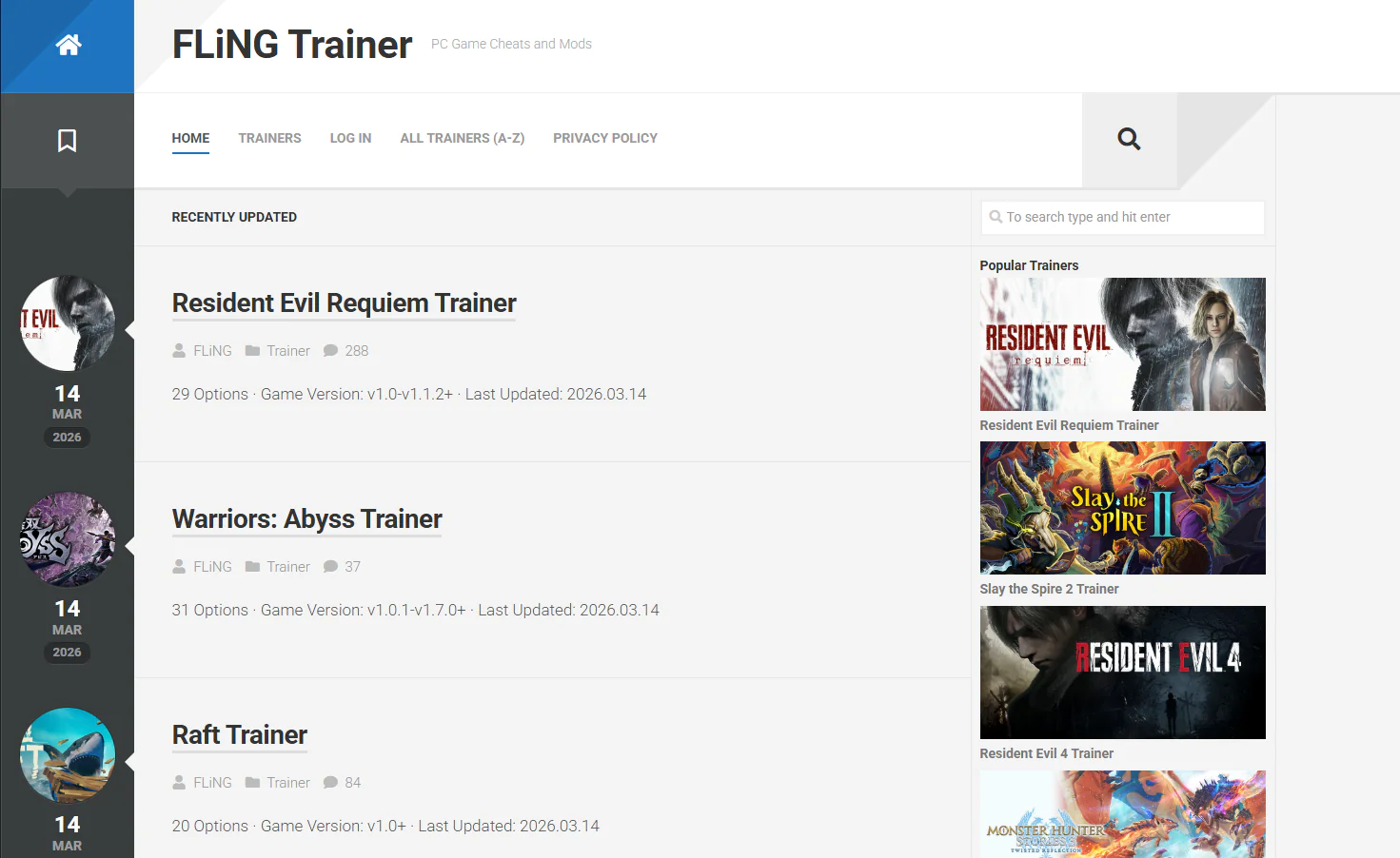
FLiNG releases trainers through a few channels but the most straightforward way is through the official site of FLiNG (flingtrainer.com) or dedicated trainer sites that mirror the releases like cheater.net. Download the file, extract it using WinRAR or 7-Zip, and you should end up with a single executable file.
How to Use It
- Launch the trainer executable first, before starting the game. You should see a small trainer window appear.
- Launch your game normally through Steam or wherever you run it from.
- Once you’re in-game and loaded into an actual session, the trainer will become active.
- Use the listed hotkeys to toggle options on and off. Most options take effect instantly.
That’s really all there is to it. The trainer runs in the background and responds to keypresses while you’re playing.
Tips for Getting the Best Experience
Toggle options after the game fully loads. Enabling God Mode or similar options on a title screen or loading screen can sometimes cause issues. Wait until you’re in control of your character before activating anything.
Not every option needs to be on at once. Trainers are best used selectively. Turning on One Hit Kills while keeping health normal, for example, still gives you a more grounded experience while removing the grind.
If something breaks, restart both the trainer and the game. Most issues resolve themselves with a clean restart. Make sure the trainer launches before the game each time.
What to Do If the Trainer Isn’t Working
If the hotkeys aren’t responding or the options don’t seem to do anything, run through this checklist:
- Confirm your game version matches the trainer supported version
- Make sure you launched the game before the trainer
- Check if the game has an anti-cheat system that needs to be disabled first
- Confirm your antivirus hasn’t silently quarantined or blocked the trainer