
If you’ve been using trainers for a while, you’ve probably come across situations where a game needs a specific launch argument to work correctly. It sounds technical but it’s actually one of the simplest things you can do in Steam. Here’s exactly how to do it and what it actually means.
Contents
What is a Launch Argument?
A launch argument, sometimes called a launch option, is a piece of text you add to a game’s settings that tells it to do something specific when it starts up. It runs before the game fully loads and can change how the game behaves at a fundamental level.
Some common real world examples include -dx11 or -dx12 to force a specific graphics API in games like Battlefield or various Unreal Engine titles, -nointro to skip opening cutscenes in games like The Elder Scrolls series, and -windowed to force a game to launch in windowed mode instead of fullscreen. In the trainer world, launch arguments are sometimes used to disable built-in anti-cheat systems so a trainer can interact with the game’s memory without being blocked.
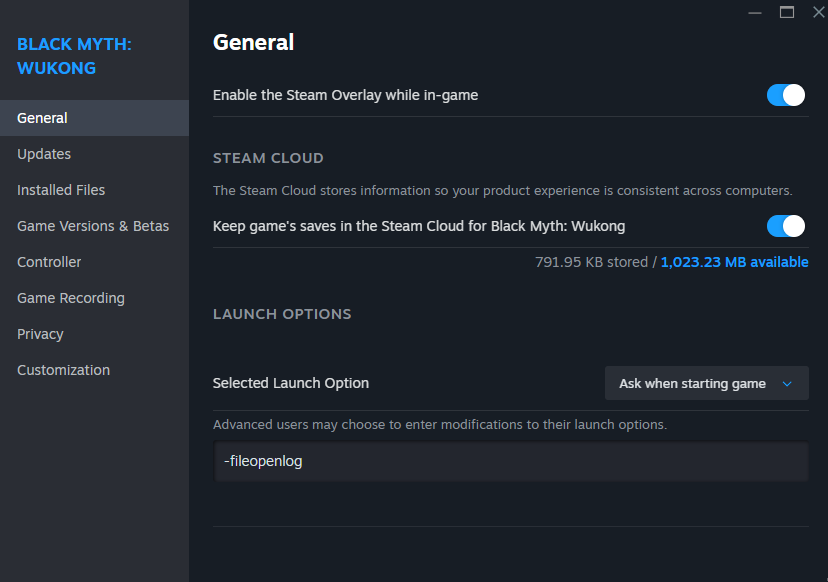
How to Add a Launch Argument in Steam
The process takes about thirty seconds.
- Open Steam and go to your Library
- Right-click the game you want to modify
- Select Properties from the dropdown menu
- Under the General tab you will see a field labeled Launch Options
- Type your argument into that field exactly as listed, including any dashes or symbols
- Close the properties window and launch the game normally
Steam will pass that argument to the game every time you launch it from that point forward.
How to Remove a Launch Argument
If you want to go back to default behavior, open the same Properties window, clear out whatever is in the Launch Options field, and close it. The game will launch normally again on the next run.
Common Mistakes to Avoid
Typos. Launch arguments are exact strings and a single wrong character means the game either ignores it or behaves unexpectedly. Copy and paste whenever possible rather than typing manually.
Adding multiple arguments incorrectly. If you need more than one launch argument at the same time, separate them with a space. For example -dx11 -nointro would apply both arguments at once.
Forgetting to remove arguments after you’re done. Some arguments are only meant to be active in specific situations. If you leave them in permanently and forget about them, you might run into unexpected behavior down the line.
Does This Only Work on Steam?
No, most game launchers support launch arguments in some form. Epic Games Launcher, GOG Galaxy, and even desktop shortcuts can all have launch arguments added to them. The process is slightly different on each platform but the concept is exactly the same. For Steam specifically the process above is the most straightforward way to handle it.